

Connecting Moneris (Payments)
Connecting Moneris (Payments)
The Moneris integration lets you securely store a wholesale customer's credit card and charge it against their orders and invoices without typing or storing their card number in BarSight yourself.
Before You Start
- You need an active Moneris Payment Gateway merchant account.
- Have your Moneris Store ID, API Token, and Checkout ID ready.
- Connecting requires Settings access.
What This Integration Does
This is a payment-collection tool for your wholesale customers, not a bar or restaurant point-of-sale connection. Once set up, you can:
- Store a customer's card on file (as a secure token, BarSight never stores the raw card number).
- Charge that card against an outstanding order or invoice balance.
- Email a customer a secure link so they can enter or update their own card.
- Check whether a stored card is still valid before charging it.
- Issue full or partial refunds back to the card.
Moneris Checkout Setup
You'll need to log into your Moneris Gateway first, then goto Admin → Moneris Checkout Config, and click on the Create Profile button. Please ensure you have the following options checked/selected:
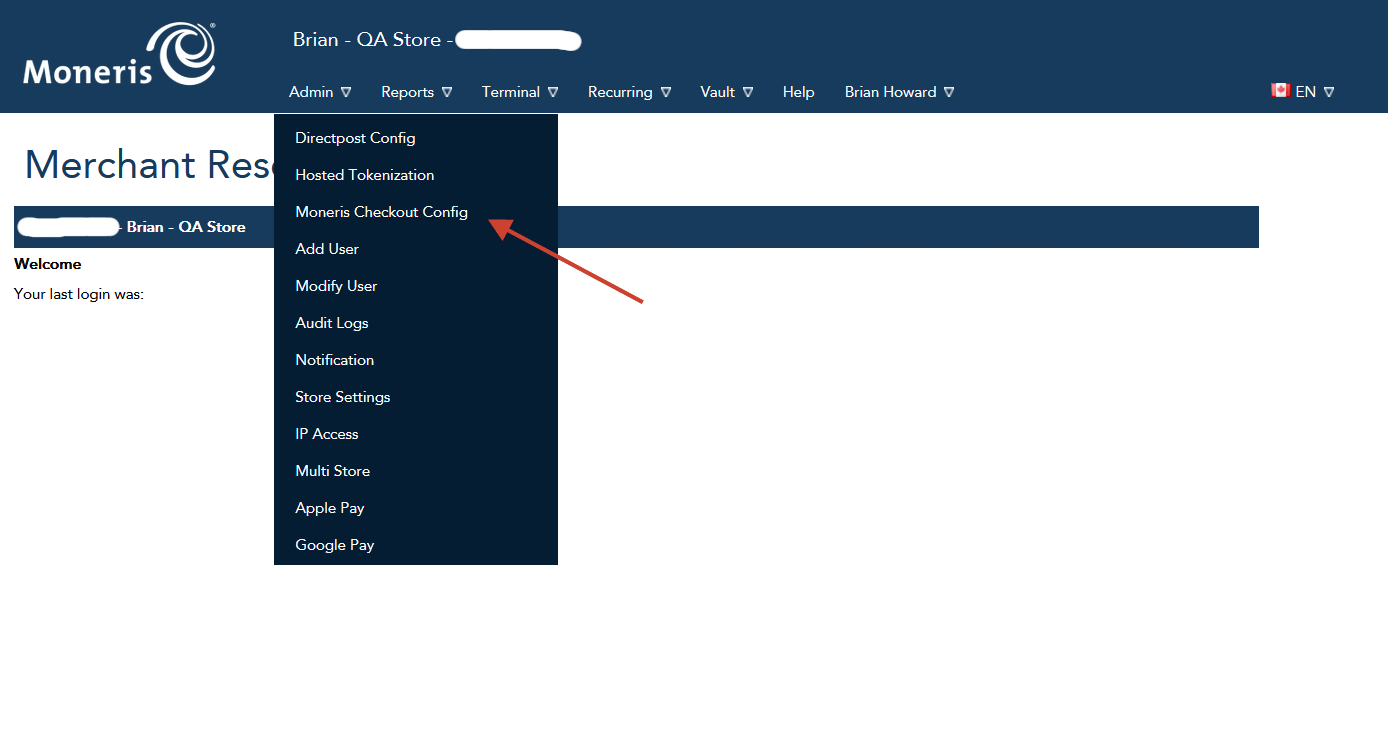
- Checkout Type
- Select I have my custom order form and want to use Moneris simply for payment processing.
- Payment
- Card Logos → Display Supported Cards
- Payment Security → Only CVV enabled. If you enable AVS or 3D Secure, you will not be able to process payments
- Transaction Type
- Card Verification
- Tokenize Card
- Order Confirmation
- Order Confirmation Processing → Use Moneris
Make sure you copy your Checkout ID on screen, should be something like chktTMPUP11111 and click Save
Connecting Moneris
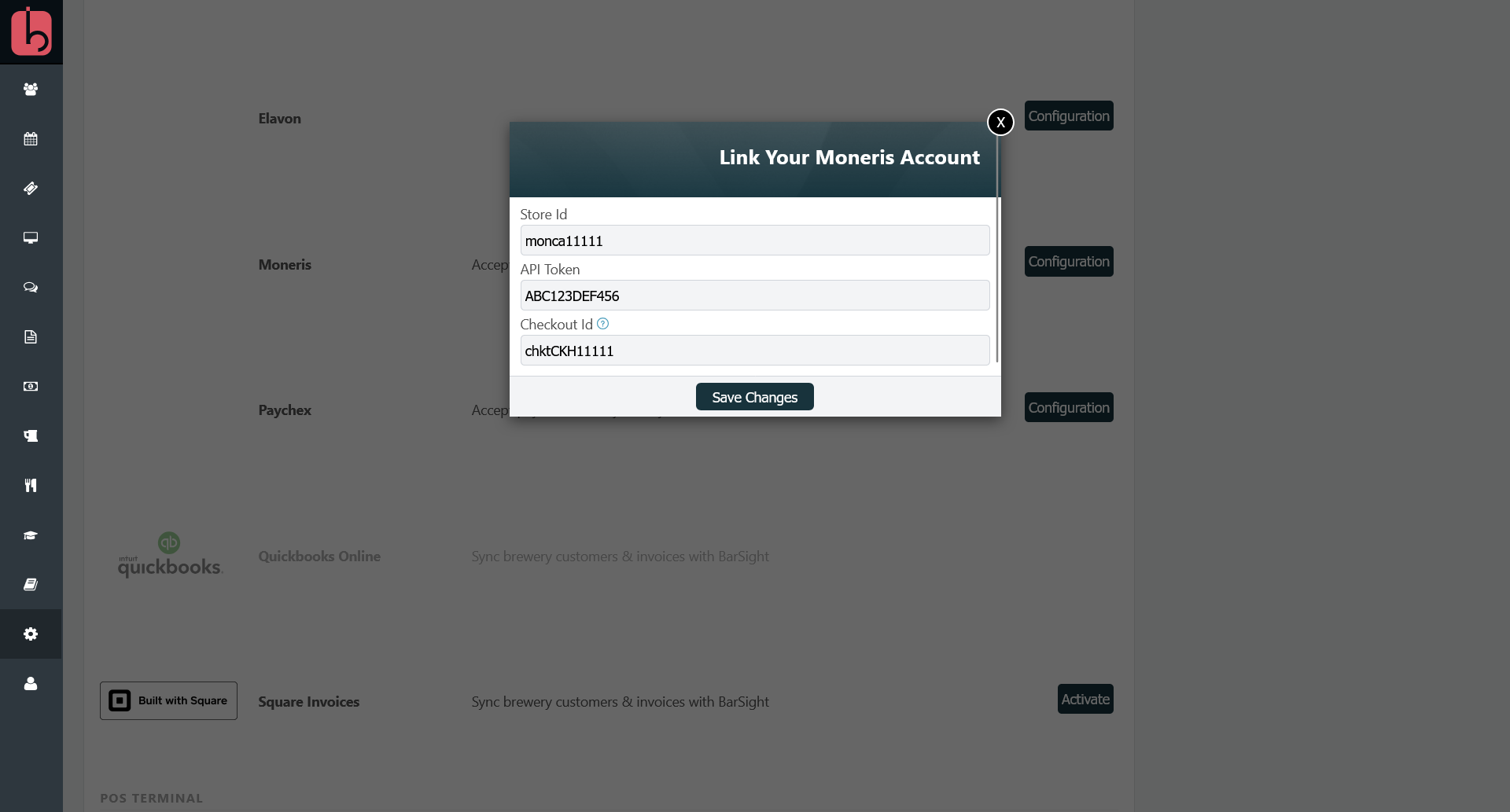
- Go to Settings → Integrations.
- Find the Moneris tile and click Activate.
- Enter your Store ID, API Token, and Checkout ID from your Moneris merchant account.
- Save. The button changes to Configuration once connected.
Using Moneris
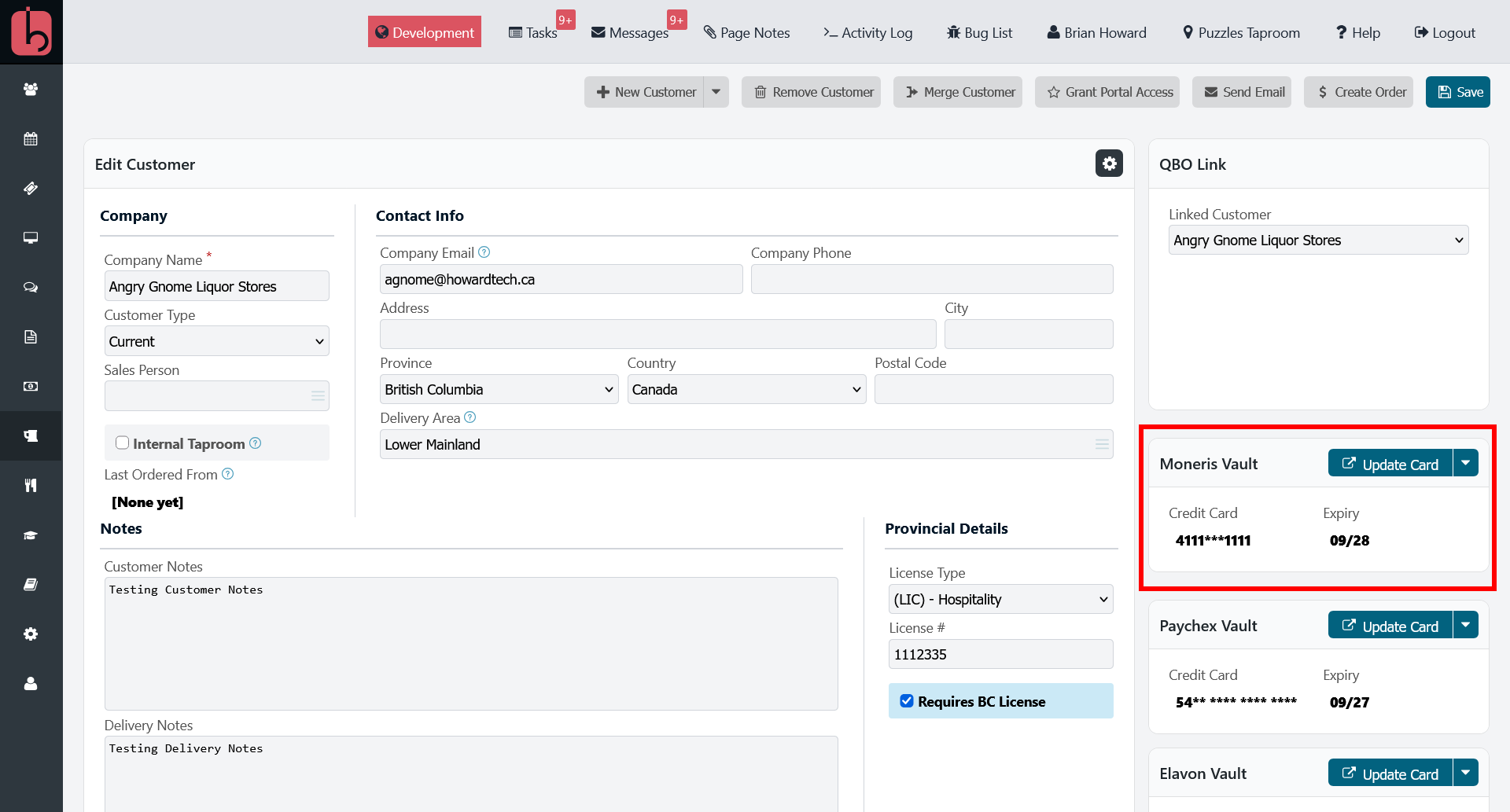
Once connected, a Moneris Vault box appears on each customer's profile, where you can verify we have their card on file, update the card information or send them a request to add one.
On an order's payment screen, you'll see the card status (valid/invalid), a payment amount field, and a Charge Card on File button is disabled until a card is on file for that customer.
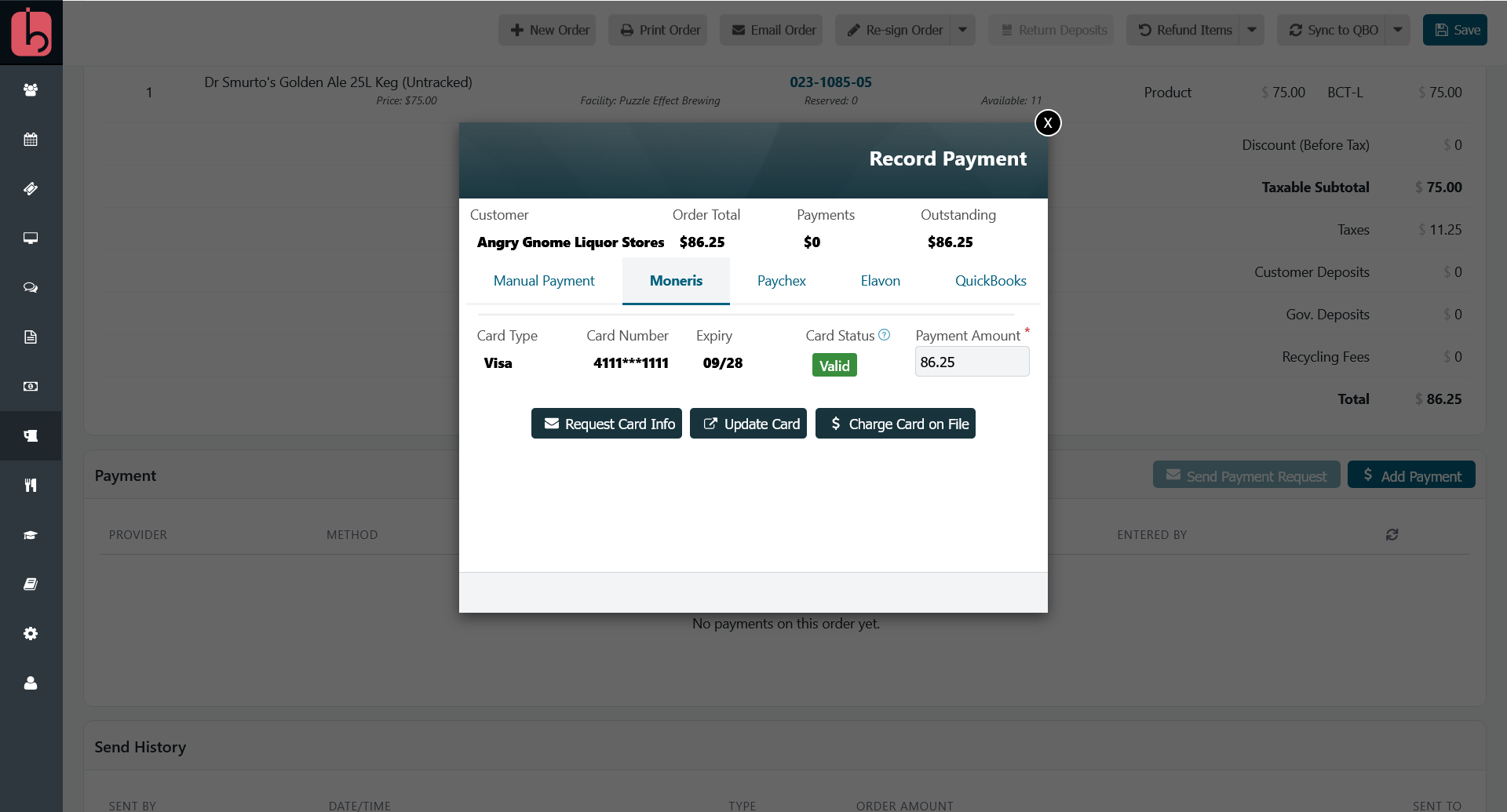
Clicking Charge Card on File will attempt to process a payment for the amount to the customers stored credit card on file, and will return either a success or a failure with a reason.
Tips and Limitations
- Card capture always happens through Moneris's own secure hosted form, which is displayed in an iframe, so credit card information is never typed directly into a BarSight screen.
- Refunds are matched to a specific prior payment on that order, so you'll need the original charge on file to refund against it.
Related Features
See the full list of available integrations on the API Integrations overview.